Feature
Calibration: real units for any USB microscope
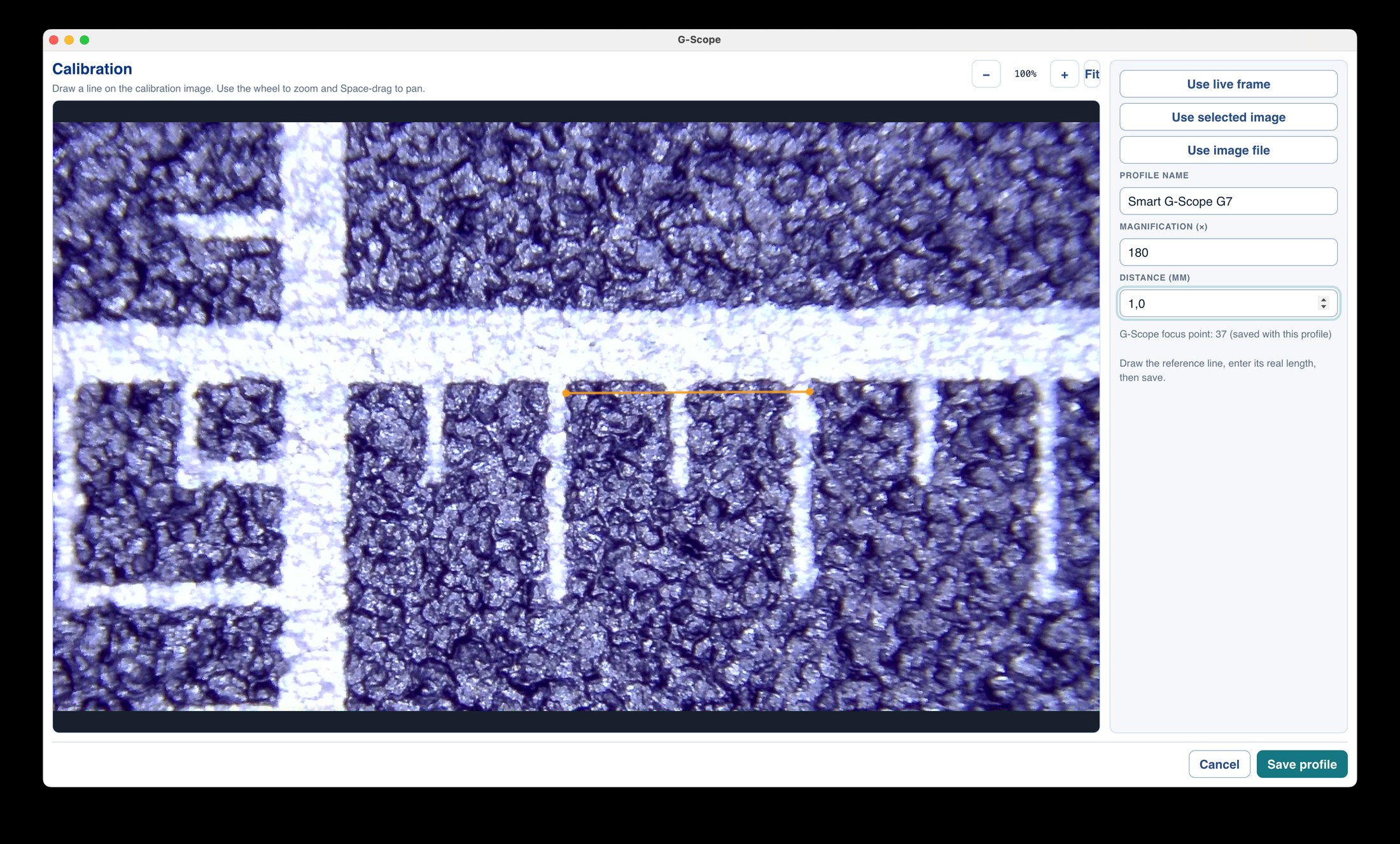
A full-screen local wizard calibrates against a live frame, a selected image or an image file. Profiles are saved per camera, resolution and magnification, so switching setups never invalidates your measurements.
At a glance
Any camera
Live frame, selected image or image file
20× zoom
Precise reference-line placement
Named profiles
Saved per camera, resolution and magnification
Smart G-Scope
Automatic calibration from the device pixel size
What you get
Calibrate against anything with a known size
A ruler, a stage micrometer, a coin or a calibration slide: draw the reference line and enter the real distance.
Precise reference placement
Pan and zoom the reference image up to 20× so the line lands exactly on the known distance, not approximately.
Profiles that survive switching devices
Each profile is stored per camera, resolution and magnification. Switch to a different microscope and pick its profile instead of recalibrating.
Automatic calibration for Smart G-Scope
A connected Smart G-Scope reports its optical mode, magnification and physical pixel size. Calibration happens automatically, and the scale legend, measurements and OME-TIFF metadata all use it.
Physical scale bars
Calibrated images can display a real-unit scale bar so every exported picture carries its own scale.
Standard-compliant metadata
OME-TIFF captures embed valid physical pixel sizes in OME-XML when calibration is available, so other microscopy tools read the correct scale.
Calibration: stock software vs G-Scope Desktop
| ✕No calibration at all, or a single hard-coded value for every mode | Named profiles per camera, resolution and magnification |
| ✕Reference line drawn by eye on a small preview | Full-screen wizard with 20× zoom for precise placement |
| ✕Calibration lost when the app closes | Profiles persist and are selectable or removable later |
| ✕Nothing exposes the scale to other software | Physical pixel sizes written into OME-TIFF and the scale legend |
Frequently asked questions
How do I calibrate?
Open the calibration wizard, choose a live frame, the current image or an image file, draw a line over a known distance (for example a ruler or stage micrometer), enter the real length, and save the profile with a name. The wizard is full-screen so you can zoom up to 20× for accuracy.
Why does the app store calibration per resolution and magnification?
The pixels-per-unit value changes with the sensor resolution and the optical magnification. Storing each combination as a named profile means the right calibration is always available and measurements stay correct.
Do Smart G-Scope owners need to calibrate manually?
No. The device reports its optical mode, magnification and physical pixel size, so calibration and the physical scale are derived automatically. A manual calibration always remains available as a fallback.