New in 2.6.8 · Desktop Pro
Focus stacking for microscope photos
Bring detail at different depths into one image. G-Scope aligns photos of the same view, selects their sharp regions and blends them into a focus stack. Adjust focus yourself with any compatible camera, or use photos already in your session folder.
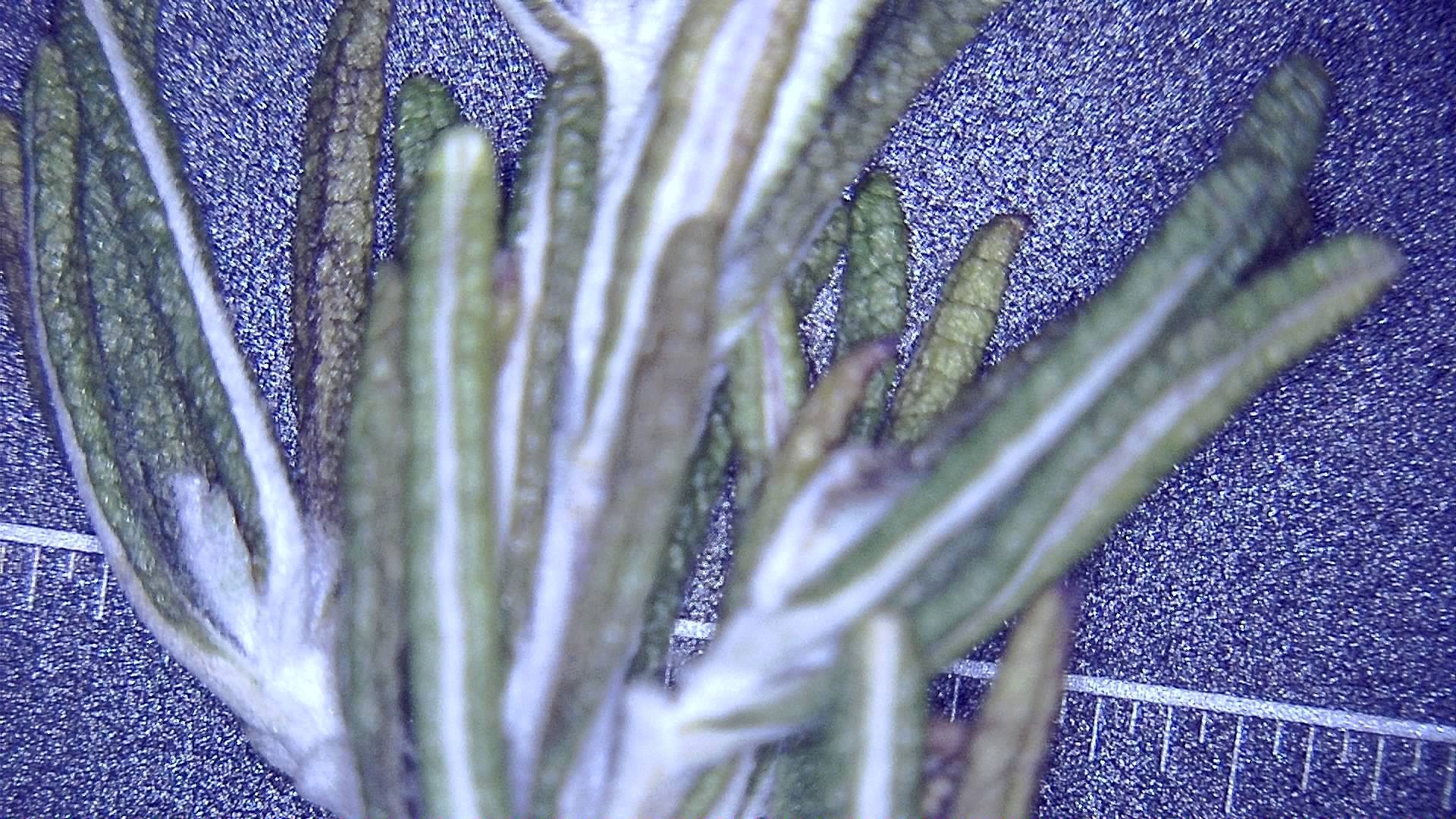
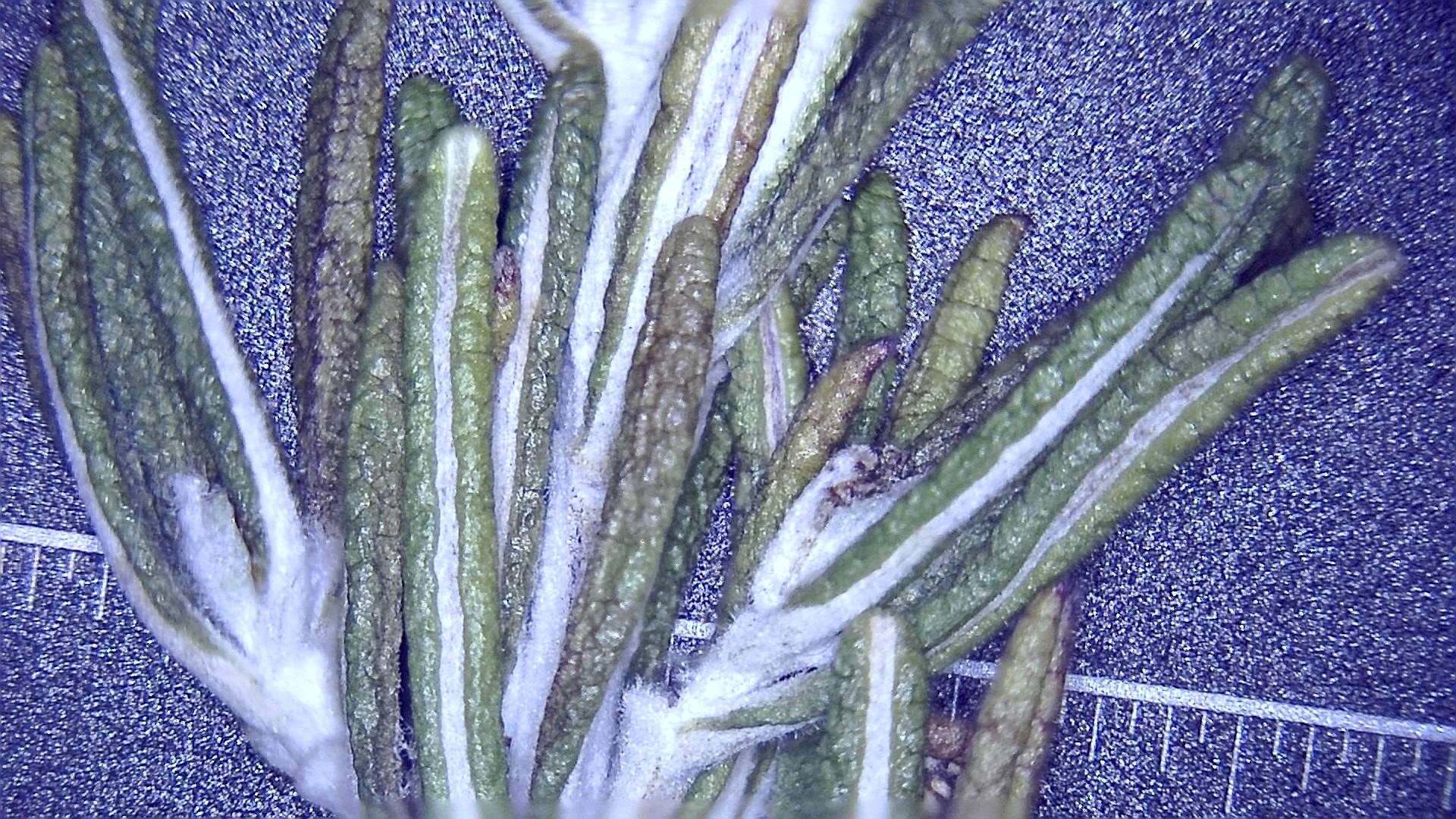
At a glance
Desktop Pro
Windows, macOS and Linux
One view, several depths
2–32 photos per stack
Manual focus is enough
No motorized focus required
Keep the detail
Lossless OME-TIFF with optional source planes
What you get
More of the specimen in focus
At high magnification, one photo may show a sharp foreground and a blurred background. Focus stacking combines detail from several focus planes to extend the depth of field in a single 2D image. It is useful for uneven surfaces, small components and plant specimens.
Automatic ordering, with a chance to review
G-Scope infers the focus sequence from image content, aligns the photos and reports their contributions. If the order is ambiguous, it asks you to inspect the result. You can return to the selection and reorder the photos manually.
How it works
Capture a series, changing only the focus
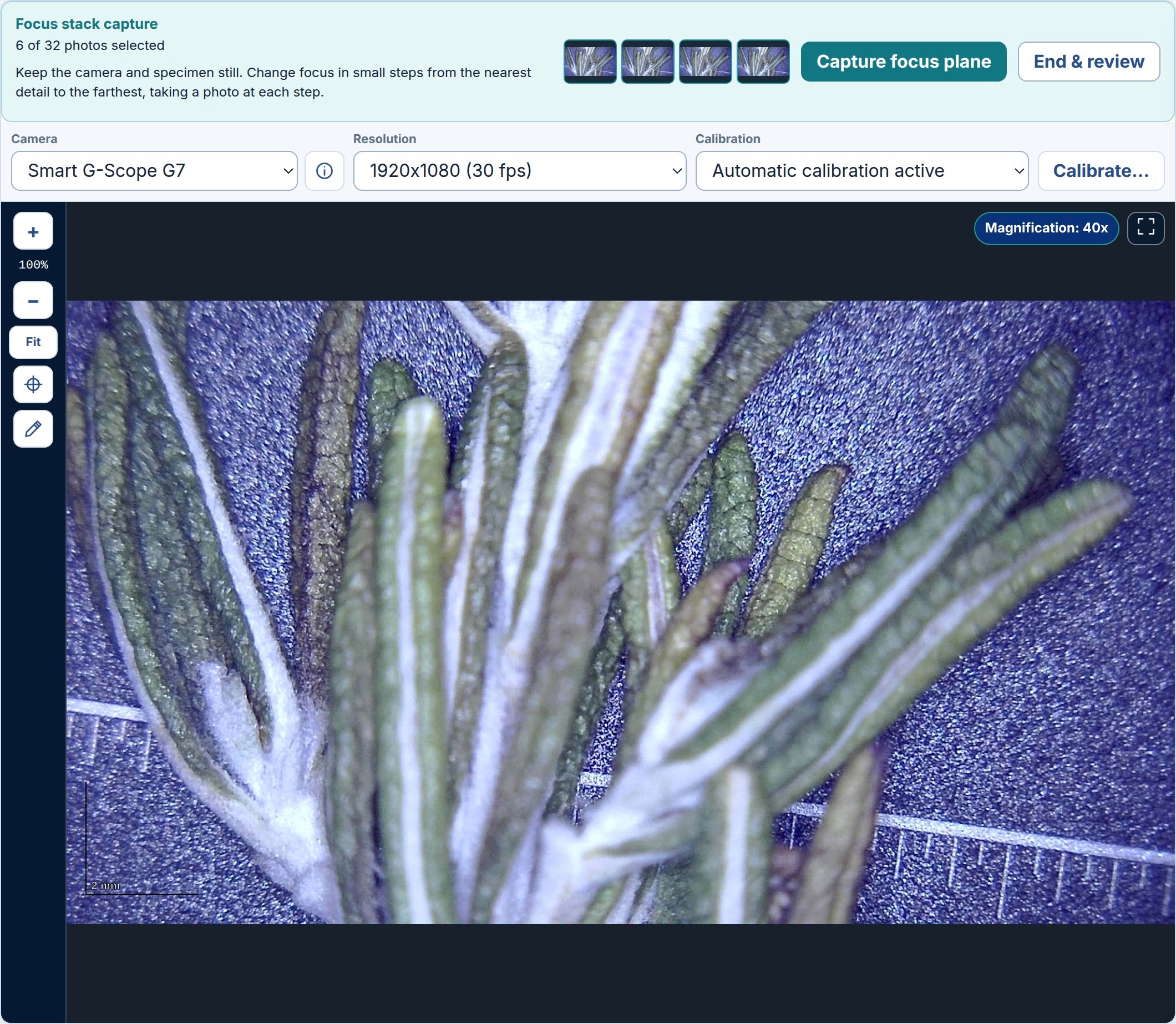
Open Focus stack… beside Panorama or in the file browser. Choose Begin new capture, keep the camera and specimen still, and move focus in small steps from near to far. Use Capture focus plane at each step, then End & review. With existing photos, select them in the file browser and open Focus stack… directly.
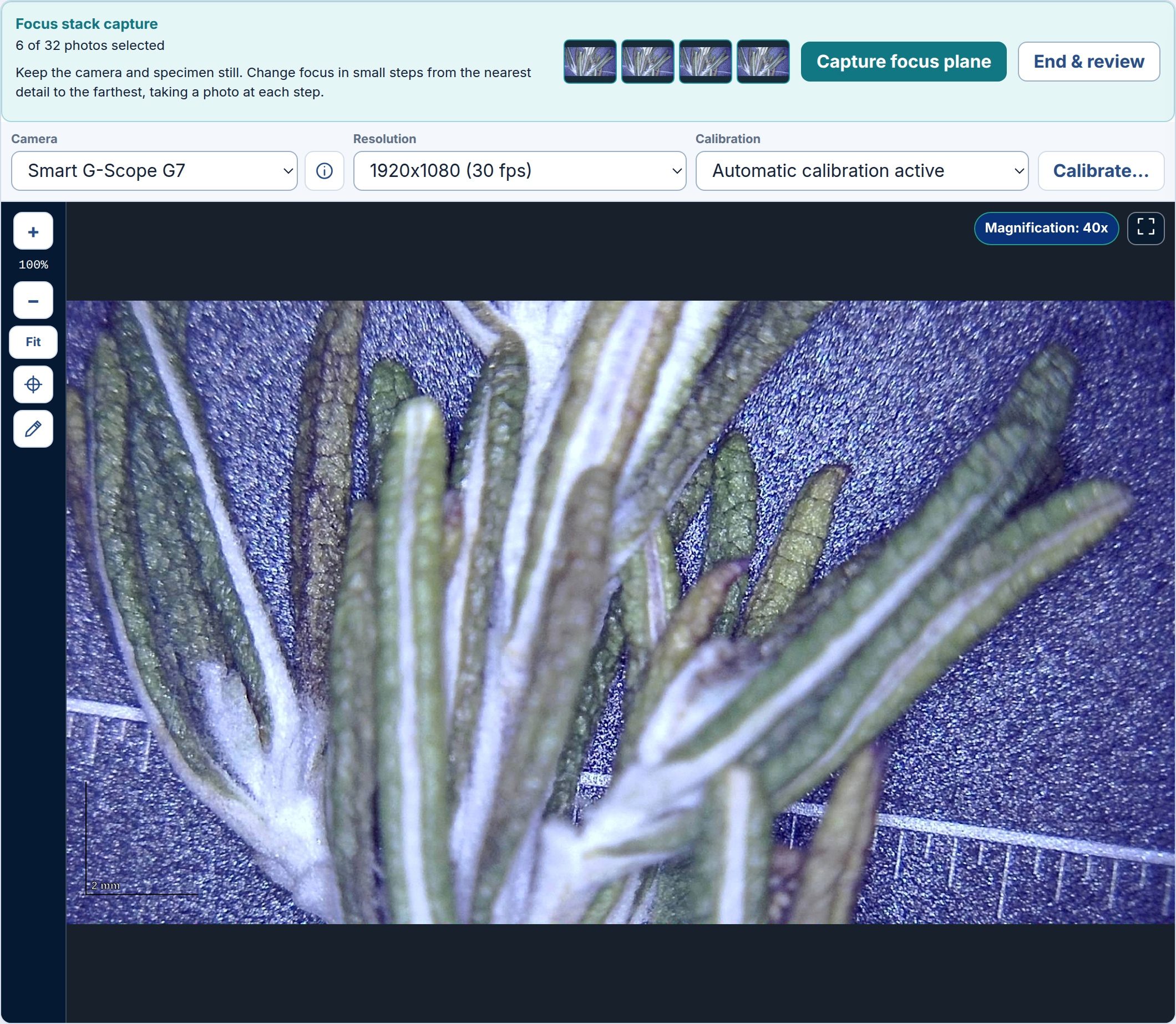
Capture demonstration in the real app UI, replaying the six original photos from the example session. Focus is adjusted by the user. Review the photos and save options
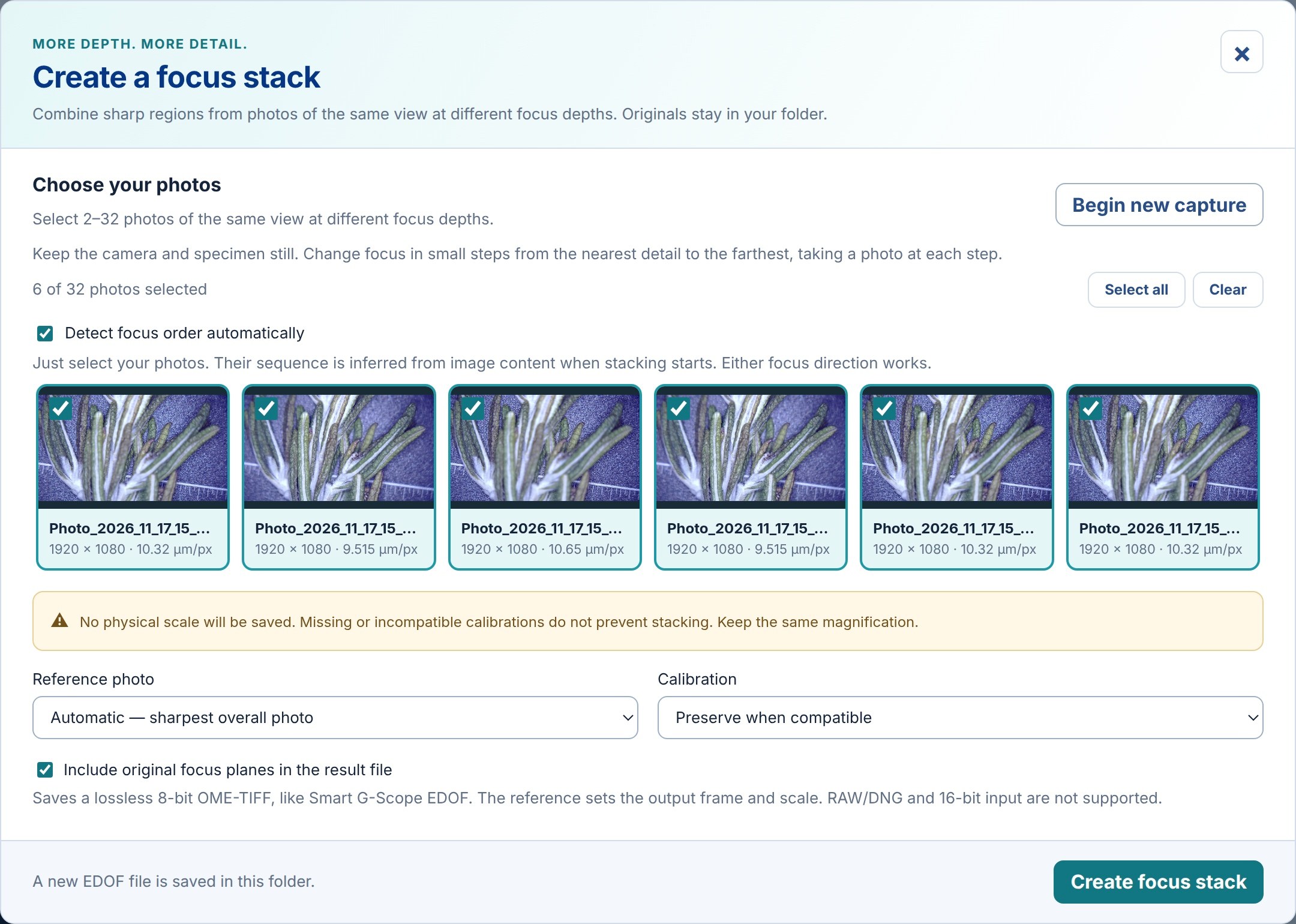
Select 2–32 photos of the same view. Leave Detect focus order automatically enabled, choose a reference if needed, and decide whether to include the original focus planes. Check the calibration notice before creating the stack.
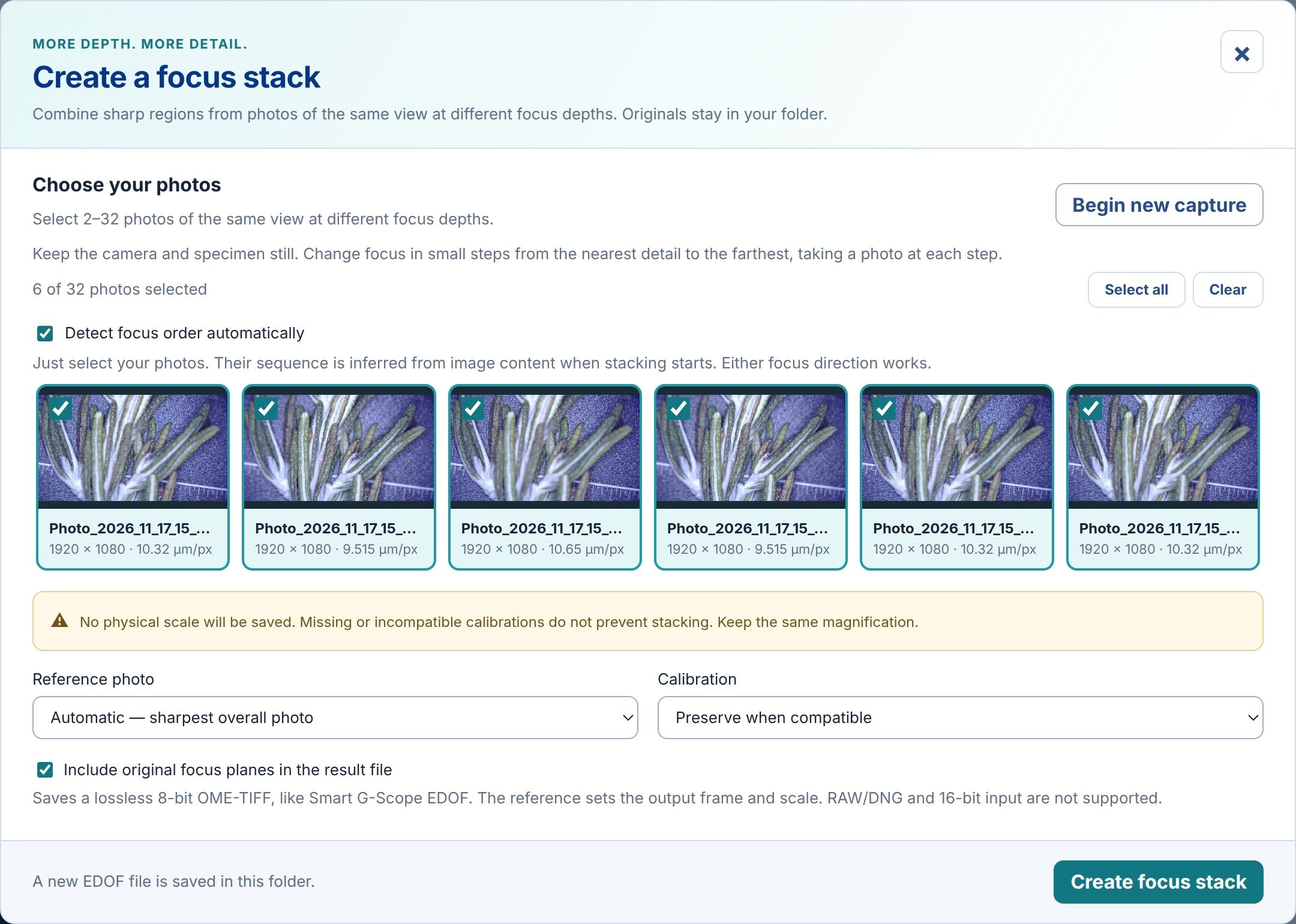
The six 1920 × 1080 source photos have different recorded calibrations. G-Scope warns that this example will be saved without a physical scale. Create and save the focus stack
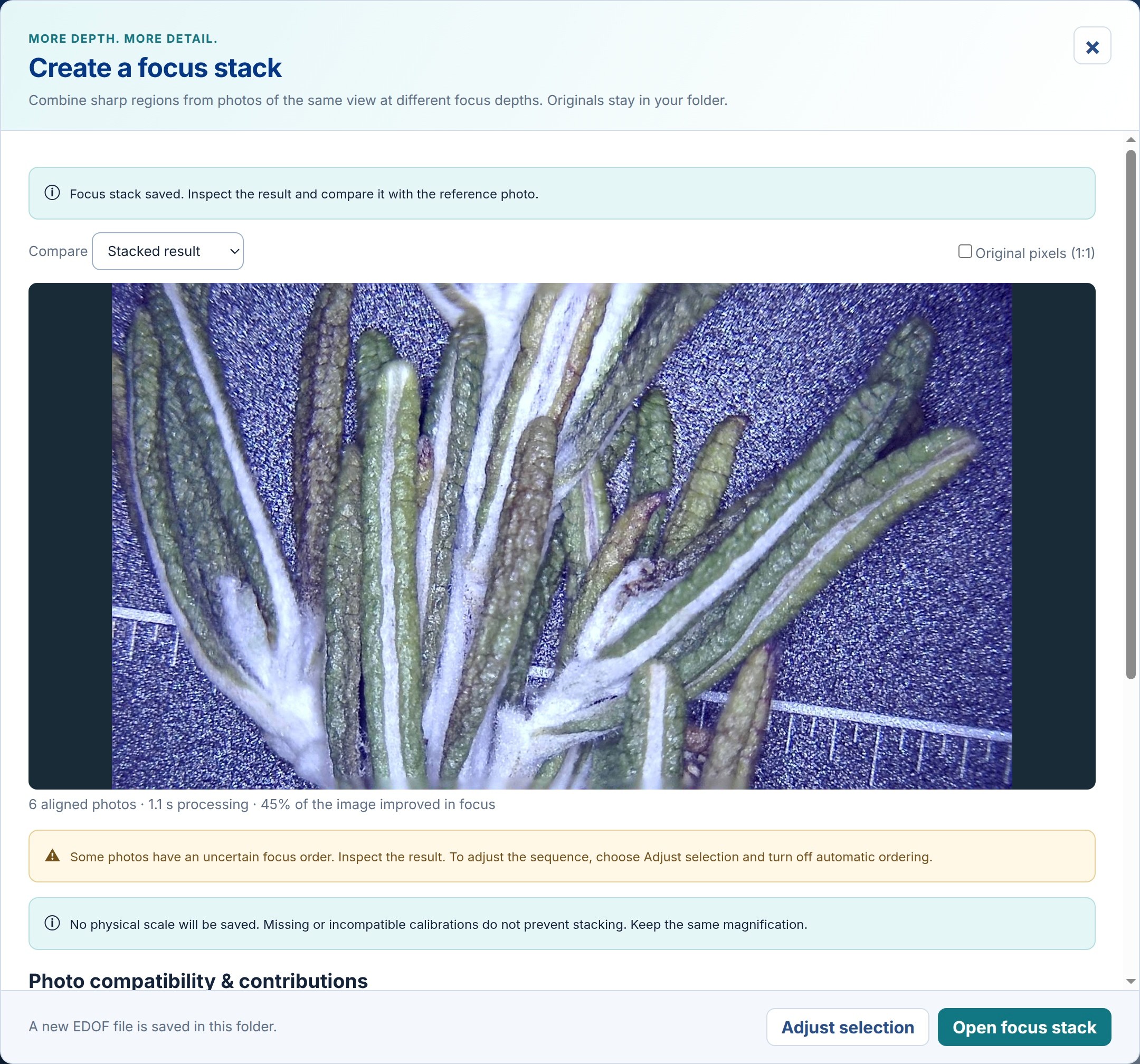
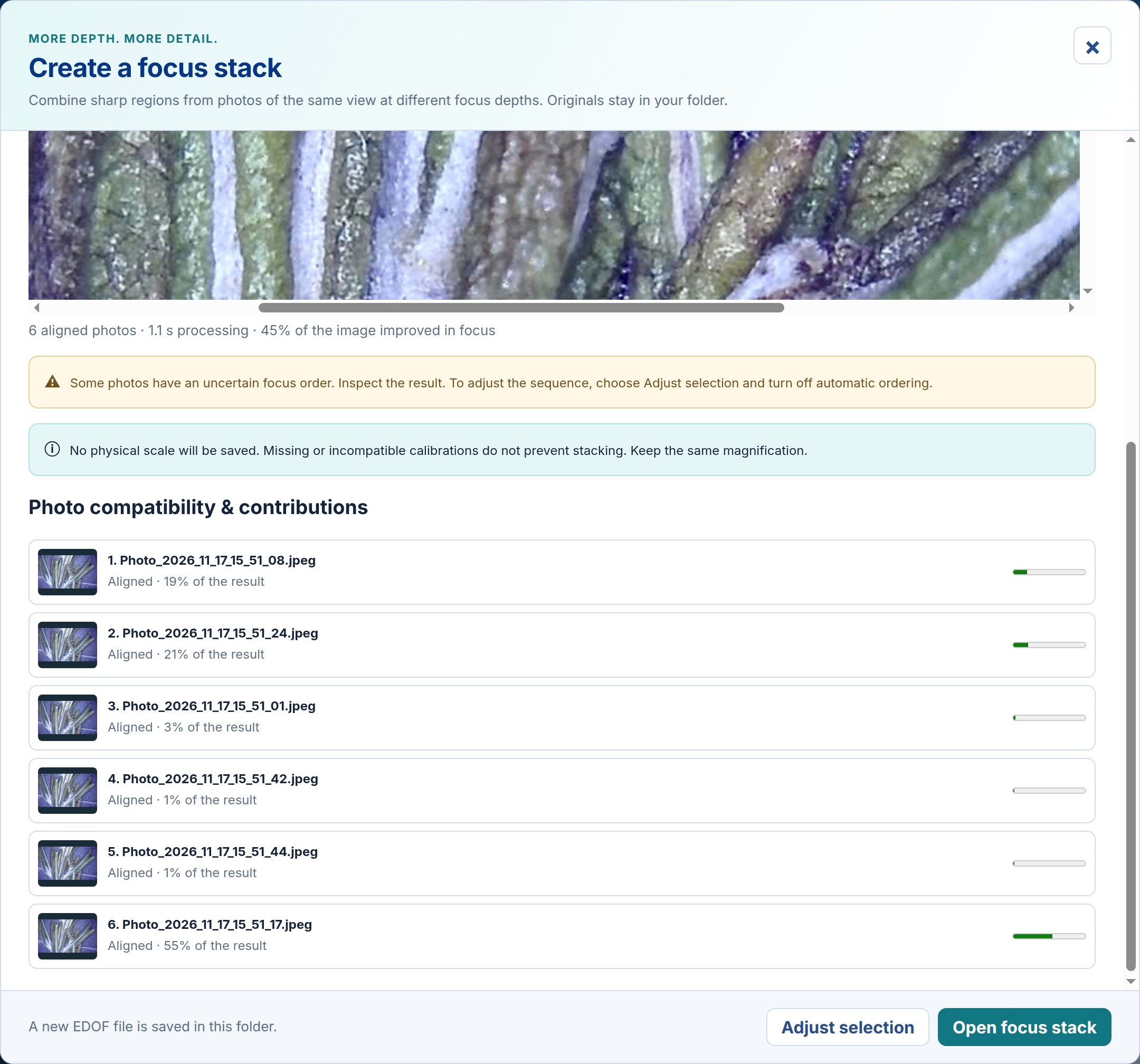
Click Create focus stack. Follow the processing progress or cancel while it runs. G-Scope saves a new lossless 8-bit OME-TIFF in the session folder and keeps the original photos unchanged. Review the alignment and contribution of each photo.
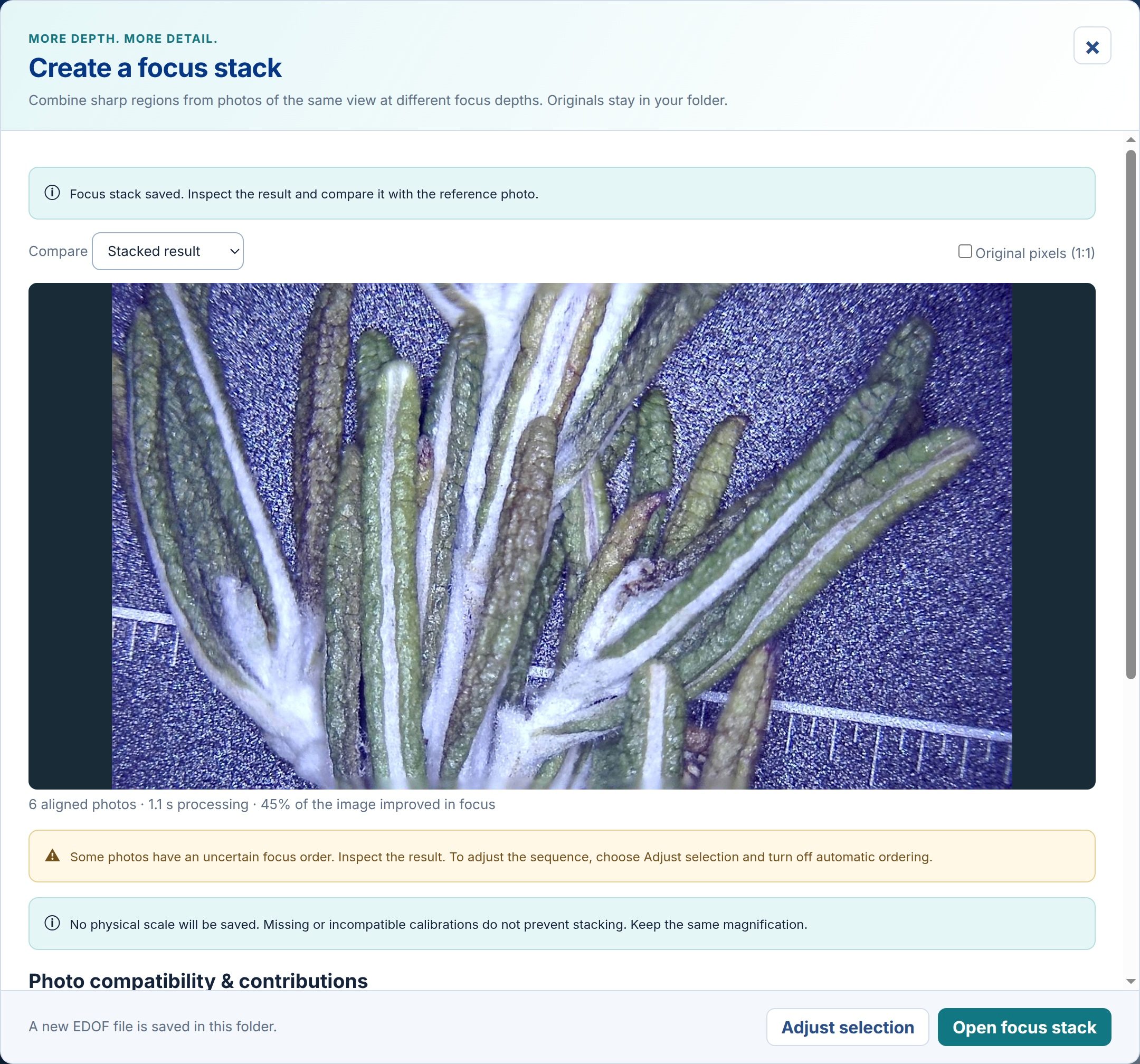
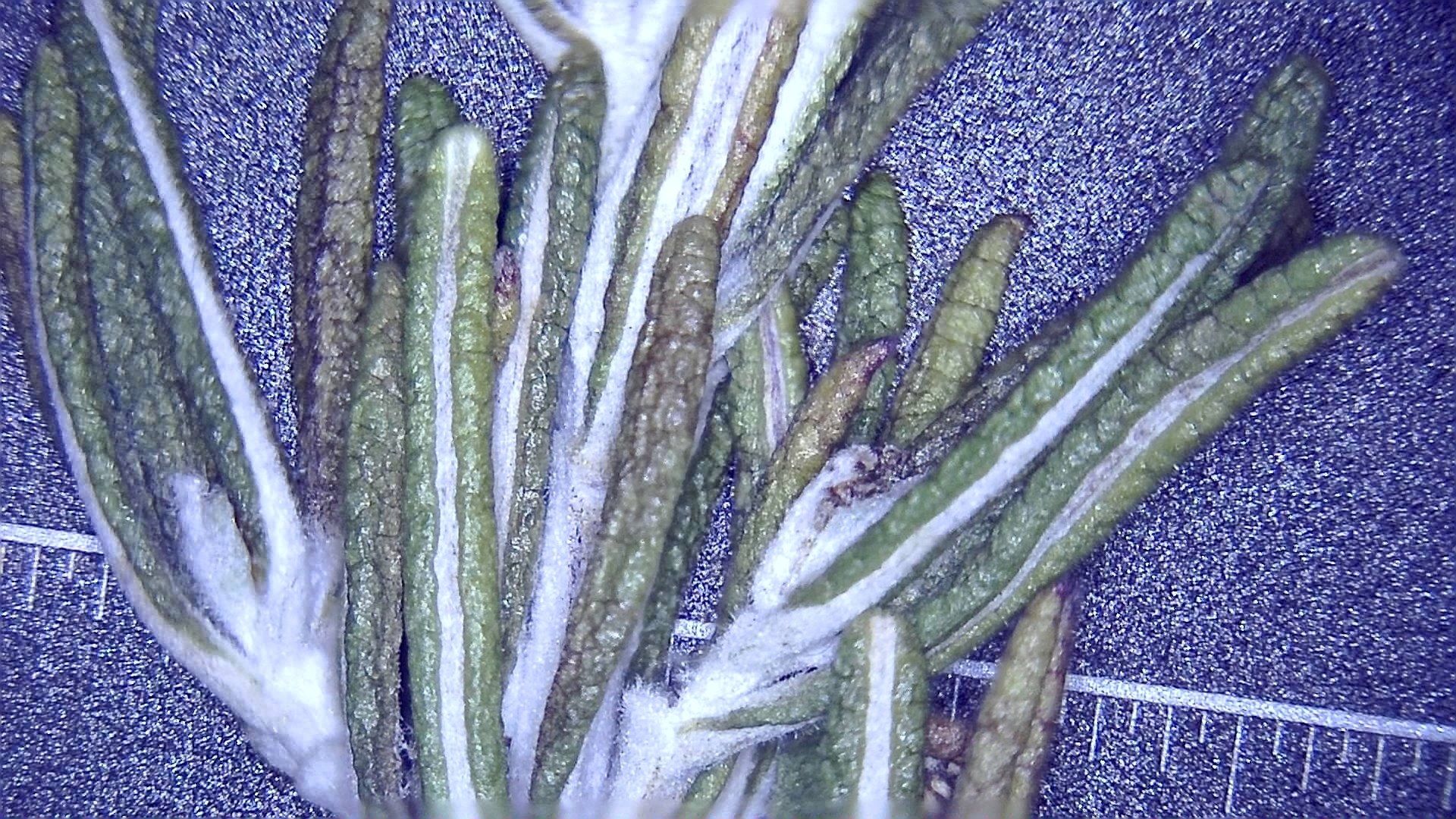
The real result combines all six photos into a 1920 × 1080 image. The focus-order review notice is retained: an inferred sequence is not a measured depth. Compare at original resolution
Use Compare to switch between Stacked result and Reference photo. Enable Original pixels (1:1) and scroll around the preview to check fine detail and edges. If needed, choose Adjust selection and disable automatic ordering to reveal the manual arrows. Open focus stack opens the saved image in the viewer.
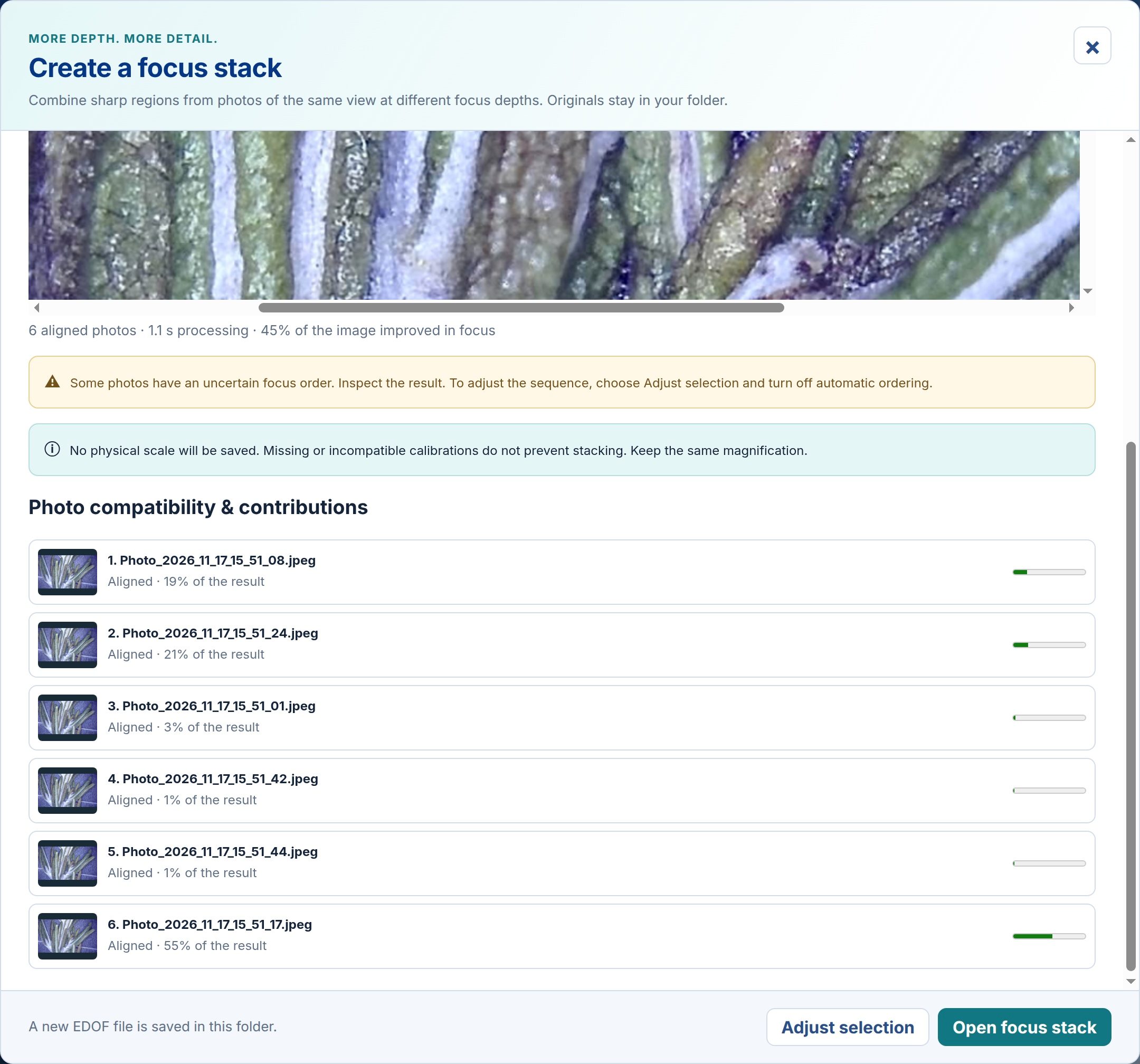
Inspect the actual saved result at 1:1 and review which photos supplied detail. Compatible calibration is preserved; this example uses pixels only.
Limitations & expectations
- Keep the view, magnification and lighting steady. Moving specimens, large shifts, missing focus planes and overlapping transparent structures can produce artifacts or prevent a useful result.
- Use opaque images of the same dimensions: JPEG, PNG, BMP, WebP or supported uncompressed 8-bit TIFF. Limits: 20 MP per photo and 80 MP combined. RAW/DNG and 16-bit input are not supported.
- The screenshots use the actual application with a simulated camera and a real Smart G-Scope G7 session. The saved stack is real; processing time and results depend on your photos and computer.
Frequently asked questions
Do I need a motorized microscope or a connected camera?
No motorized focus is required. Use the focus control on a compatible camera or microscope. With a Pro licence, existing photos can be stacked without a connected camera. A connected Smart G-Scope also unlocks Pro features.
How is this different from Smart G-Scope EDOF?
Both combine focus planes into an image with extended depth of field. Smart G-Scope EDOF controls the supported microscope’s motorized focus during acquisition. Focus stacking lets you collect planes yourself or combine existing photos, so it also works with other compatible cameras. It does not create a depth map or a 3D model.
Can I measure the result?
A physical scale is retained only when every source has compatible calibration. Otherwise G-Scope warns you and saves the fused image in pixel coordinates. The example shown has incompatible source scales, so it has no physical calibration. Check alignment and establish valid calibration before making physical measurements.