Feature
Microscope image stitching and panoramas
Create microscope panoramas with an easy, intuitive workflow: capture, review and stitch. Enable guided auto-capture, move the specimen slowly, then hold still while G-Scope takes the next overlapping photo. Or start with photos you already have. G-Scope Desktop Pro aligns and blends 2–32 images into a larger mosaic, ready to inspect and measure with valid calibration. Everything runs locally on Windows, macOS and Linux.
At a glance
Desktop Pro
Windows, macOS and Linux
Guided auto-capture
Move slowly, hold still and let G-Scope take the next tile
Inspect the joins
Fit, 1:1 zoom, tile boundaries and overlap details
Save locally
PNG or OME-TIFF, with source and alignment metadata
What you get
Microscope panoramas, made easy
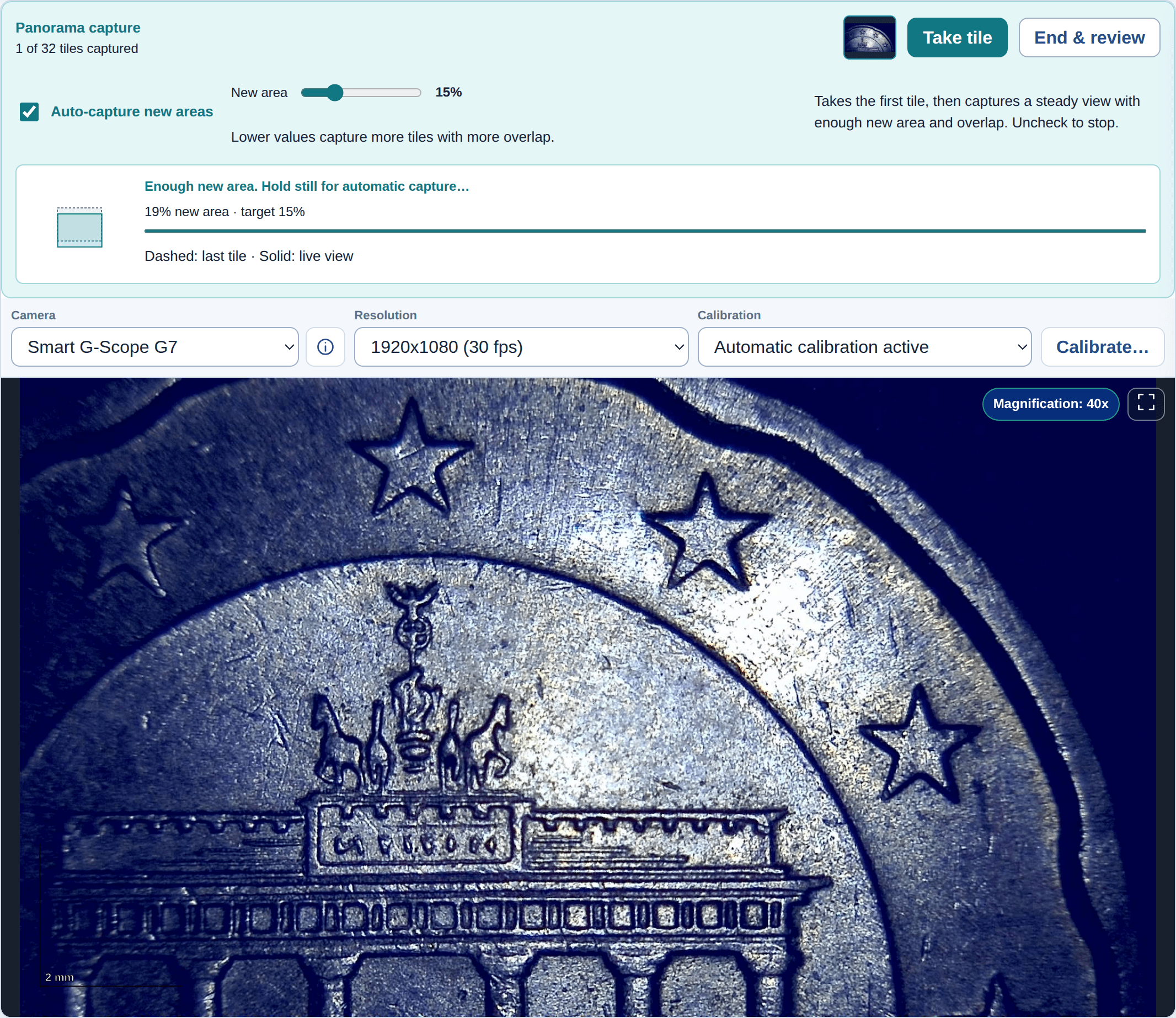
Auto-capture takes the first tile, then watches for a steady view with enough new detail and overlap. The visual overlap map, progress bar and simple prompts guide you as you move the specimen. Adjust the New area target from 10–40% (15% by default); lower values collect more photos with more overlap. You can still take a tile manually at any time.
A wider field of view
Document more than a single microscope field of view. After capture, review your overlapping photos and click Create panorama. The app finds shared detail, aligns the images and blends the seams into a larger view of a circuit board, coin or other approximately flat specimen.
Start with photos you already have
Open Panorama in your session or the media browser. You can also select pictures in the media browser and send that selection straight to Panorama. Existing photos can be stitched without a connected camera.
Review the actual result
Inspect the saved image at its original pixel size. Turn on tile boundaries and choose an overlap to see the shared region, recorded correlation and alignment residual when available. If photos do not form one connected panorama, review the matching groups or add an intermediate photo.
Keep a meaningful physical scale
When every input has usable calibration, G-Scope brings the images to a common physical scale and adjusts the saved scale for the output resolution. Missing or incompatible calibration produces a pixel-only panorama with an explanation; you can calibrate the result before measuring.
How it works
Move, hold still and auto-capture
With your camera connected, open Panorama…, choose Begin new capture and enable Auto-capture new areas. Move the specimen slowly, keeping the same focus and magnification, then hold still when prompted. The app takes the next photo once the view is steady with enough new area and overlap. Leave New area at 15% to start, then choose End & review when you have covered the area.
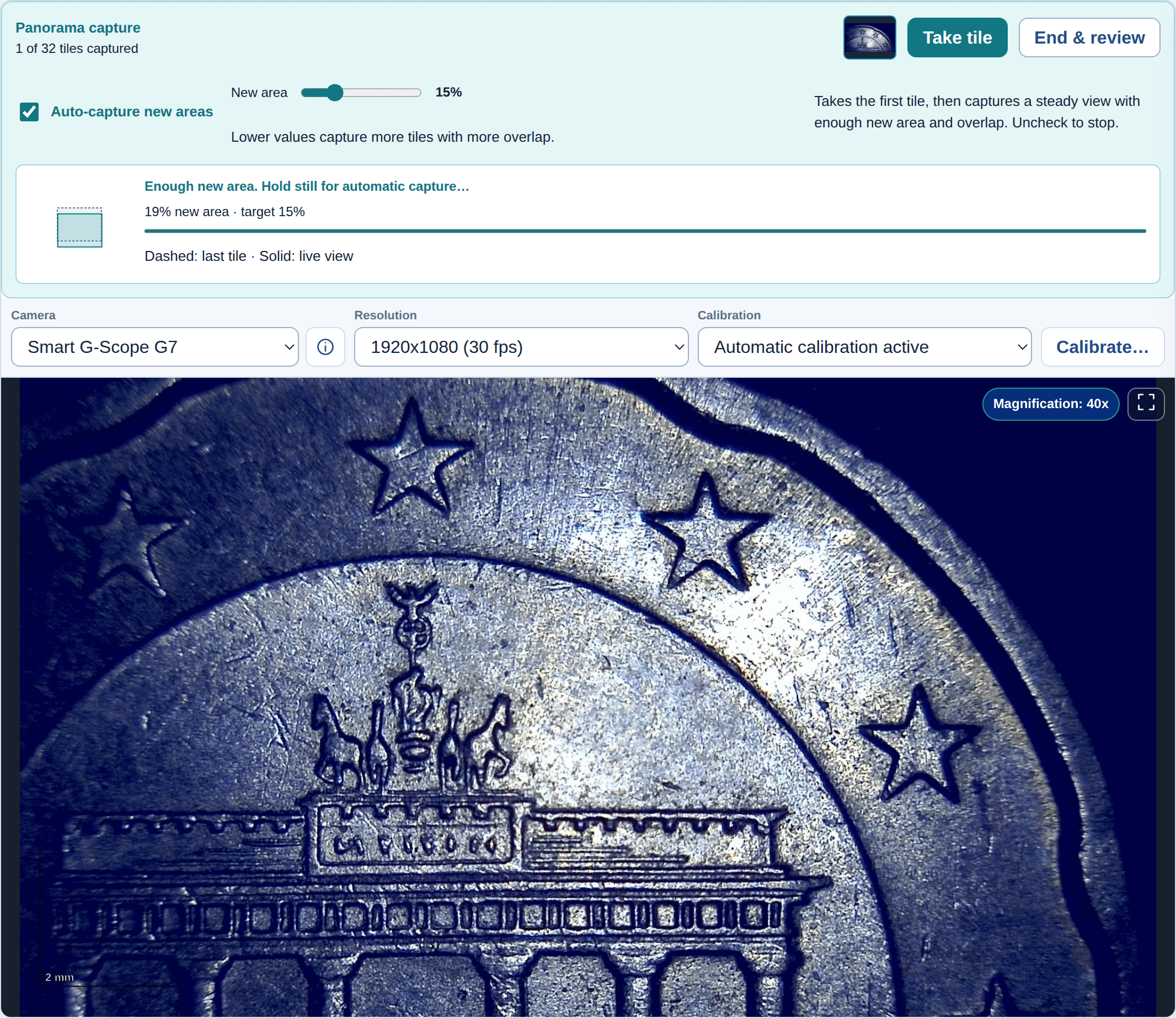
Actual G-Scope 2.6.5 auto-capture interface, demonstrated with recorded images from the same calibrated coin session. The overlap map and capture guidance are calculated by the app. Review your overlapping photos
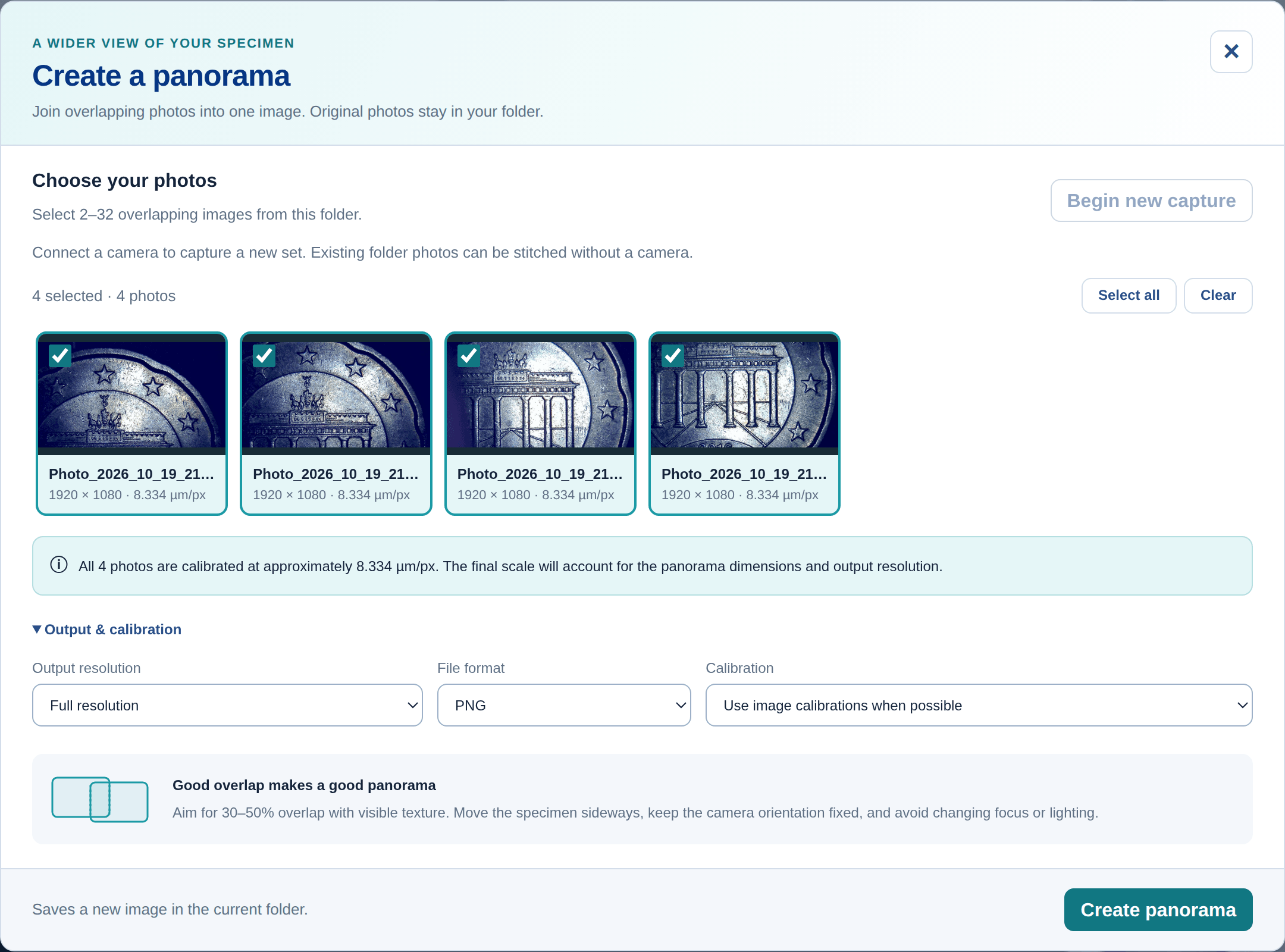
Review the new capture sequence, or open a session folder and select 2–32 existing photos in Panorama…. Expand Output & calibration to choose full, half or quarter resolution and PNG or TIFF. Check that the photos share enough detail and have usable calibration if you want physical measurements.
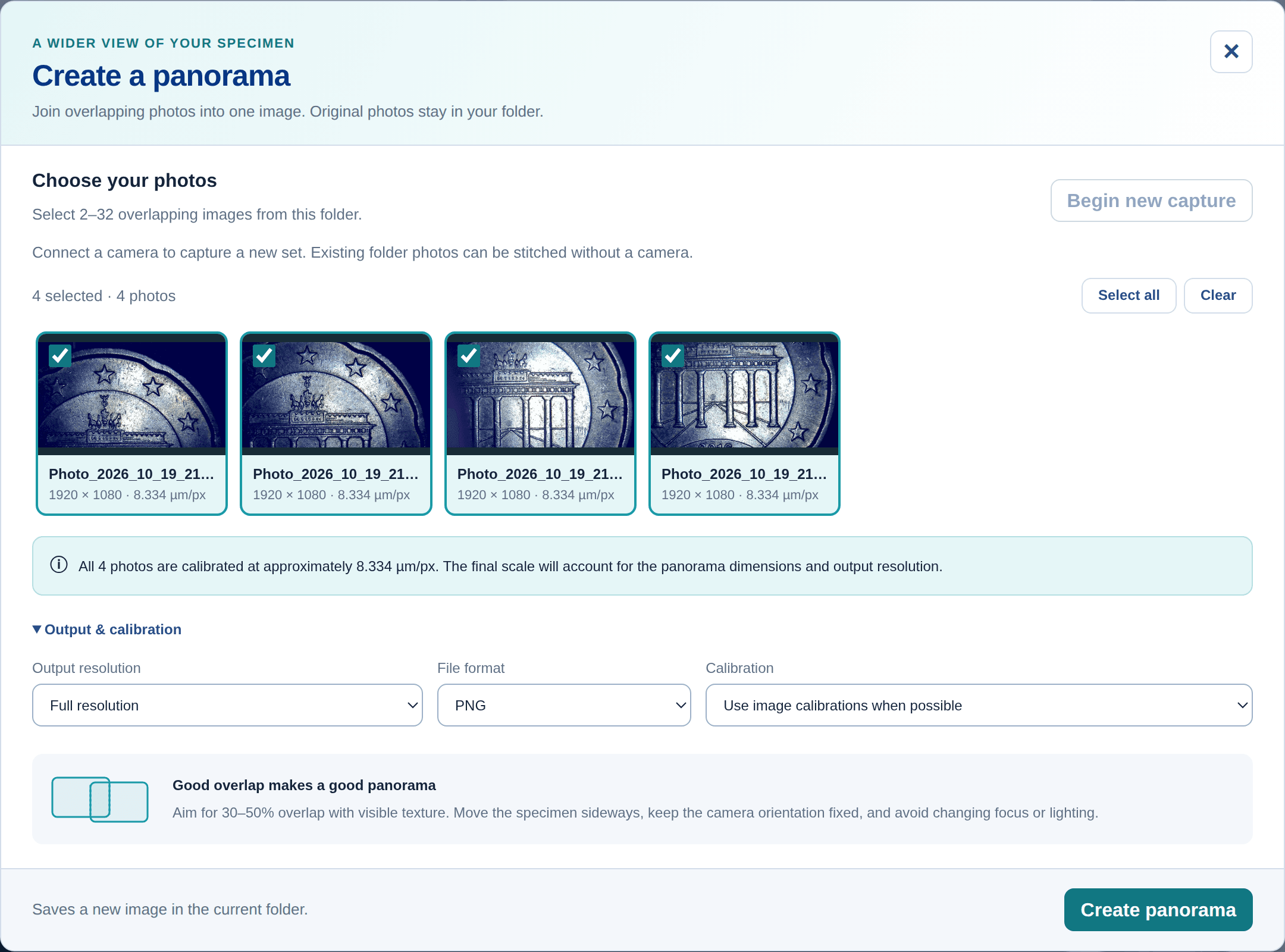
Four separate 1920 × 1080 photographs of a coin, captured with a Smart G-Scope G7. All four share the session’s recorded calibration of approximately 8.334 µm/px. Create and save the panorama
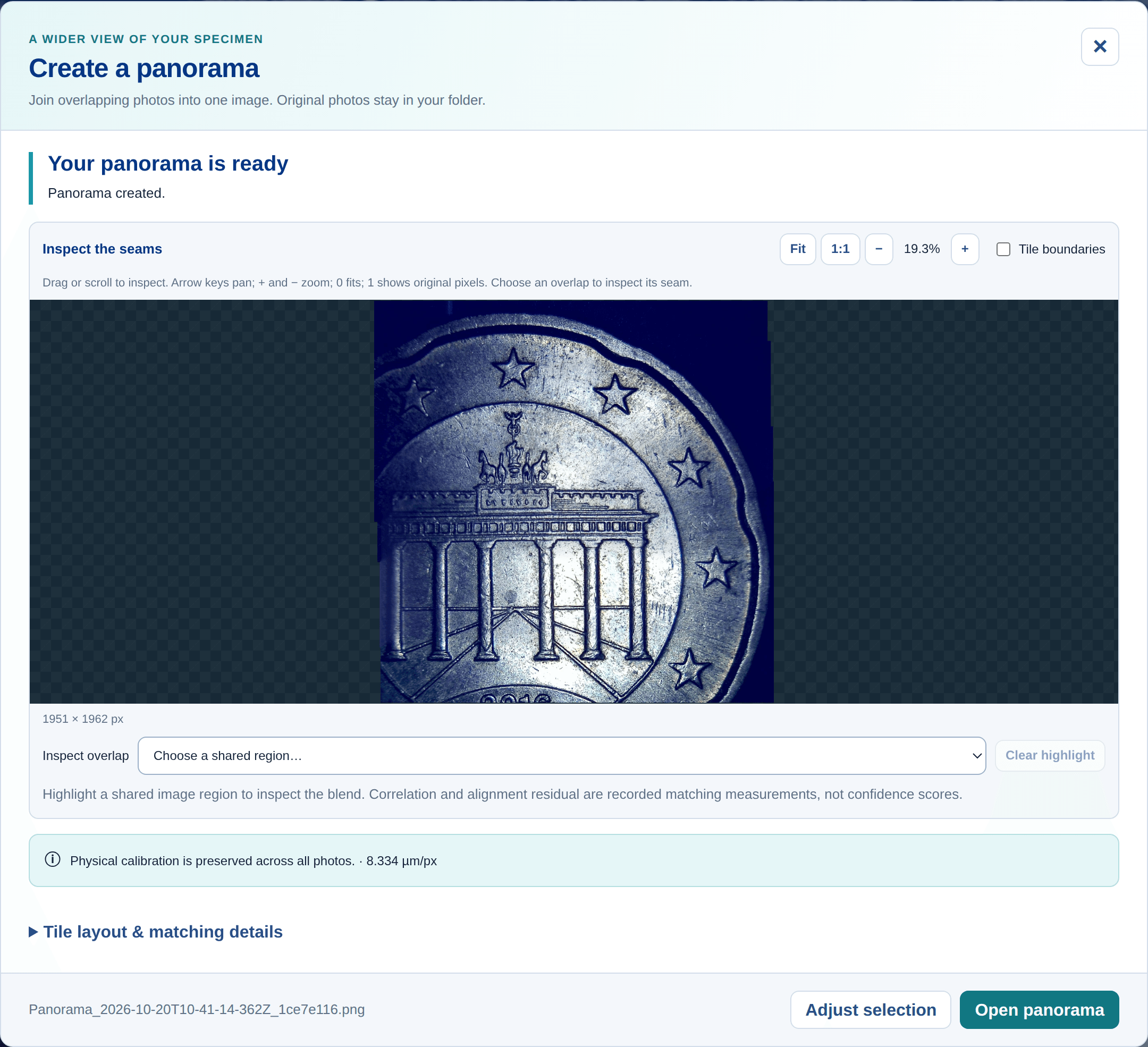
Click Create panorama. G-Scope matches overlapping regions, checks the alignment and blends the seams, with progress while it works. The result is saved as a new image in the current folder; the source photos remain unchanged.
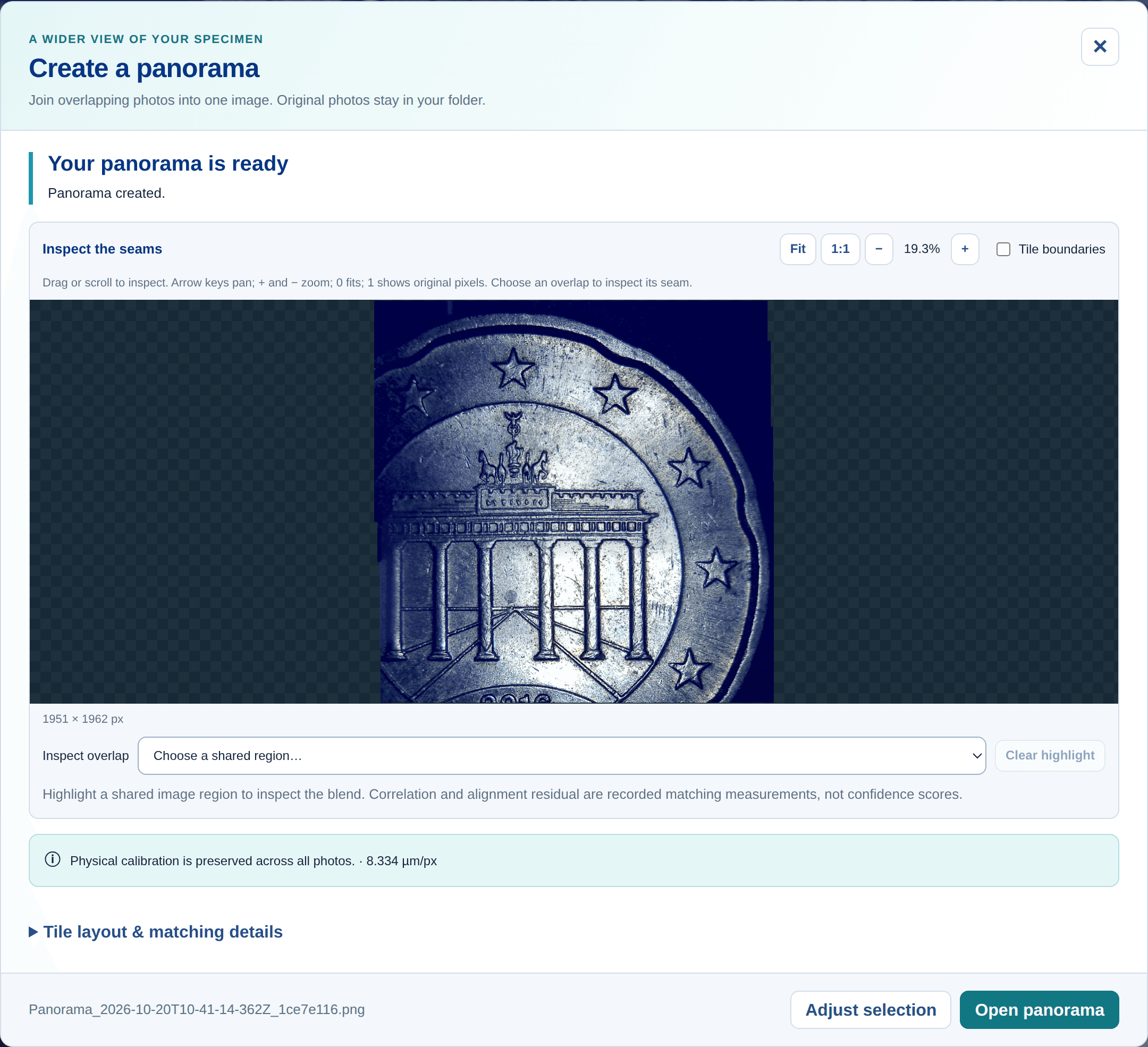
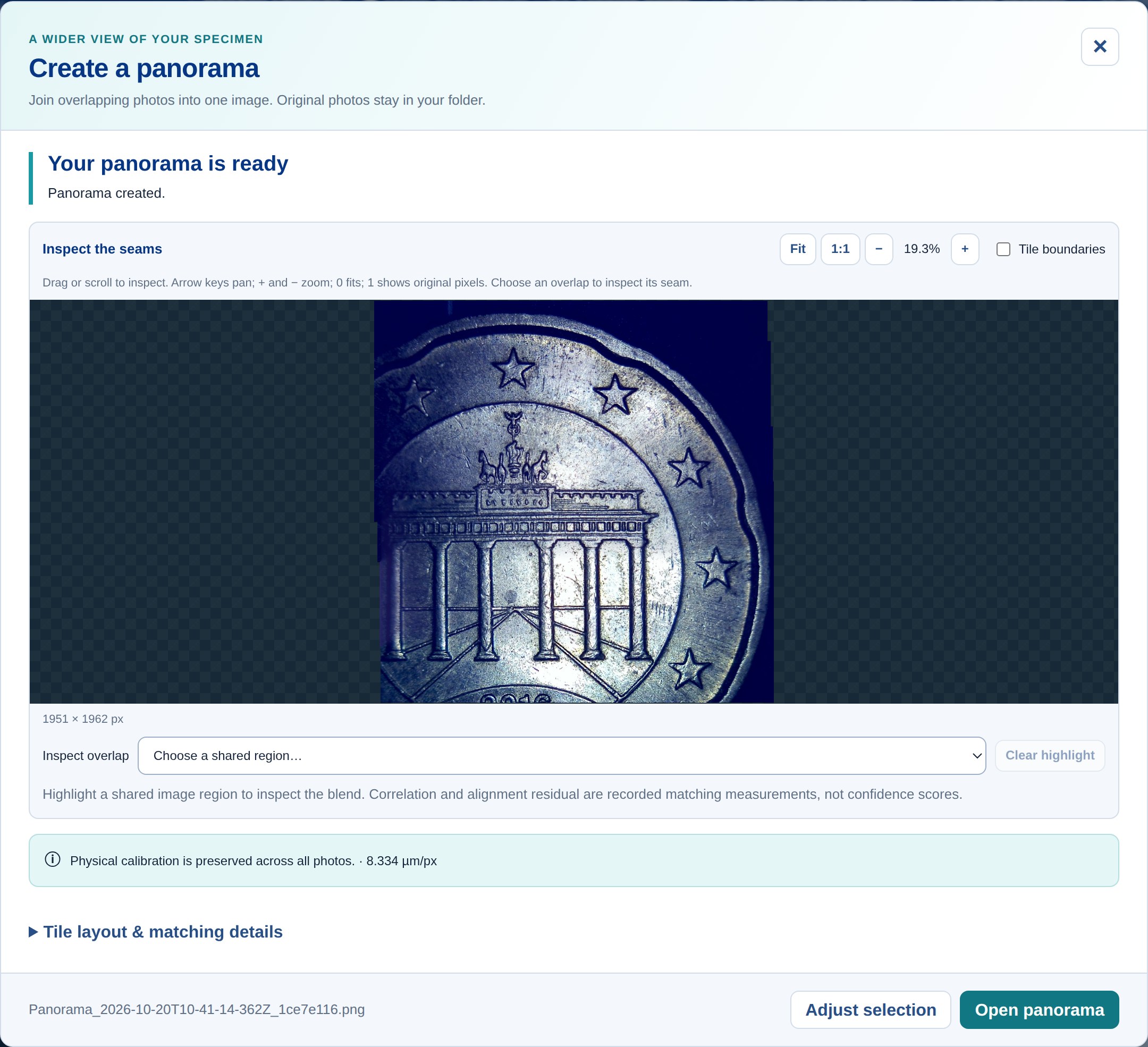
The four photos form this 1951 × 1962 panorama, with the source calibration preserved at approximately 8.334 µm/px. Fit shows the complete saved image. Zoom in and check the seams
Use 1:1 to inspect original pixels, or zoom and drag to move around. Enable Tile boundaries and choose an overlap to highlight the join and read its matching details. Open panorama takes the saved result into the photo viewer for measurements and annotations.
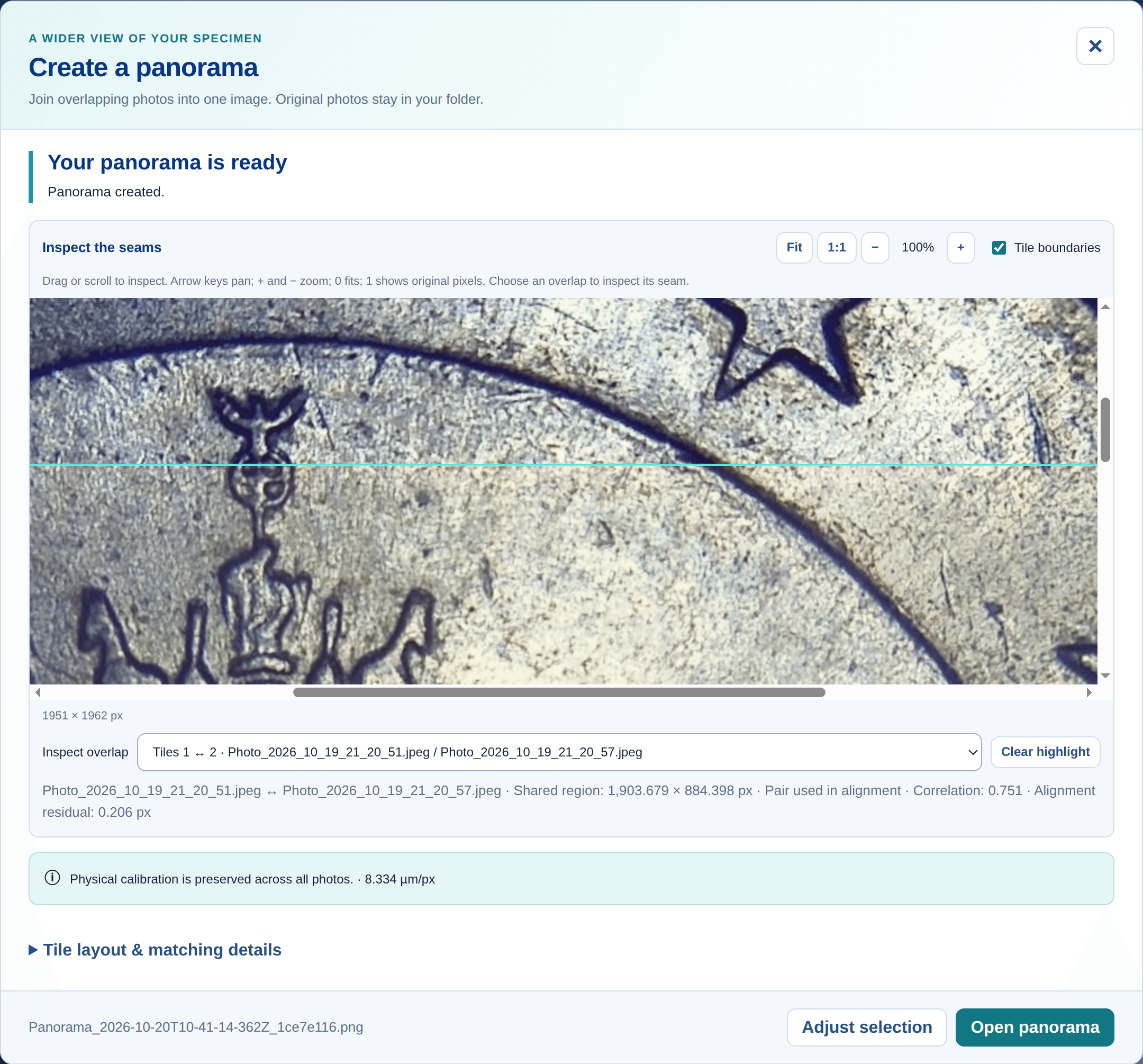
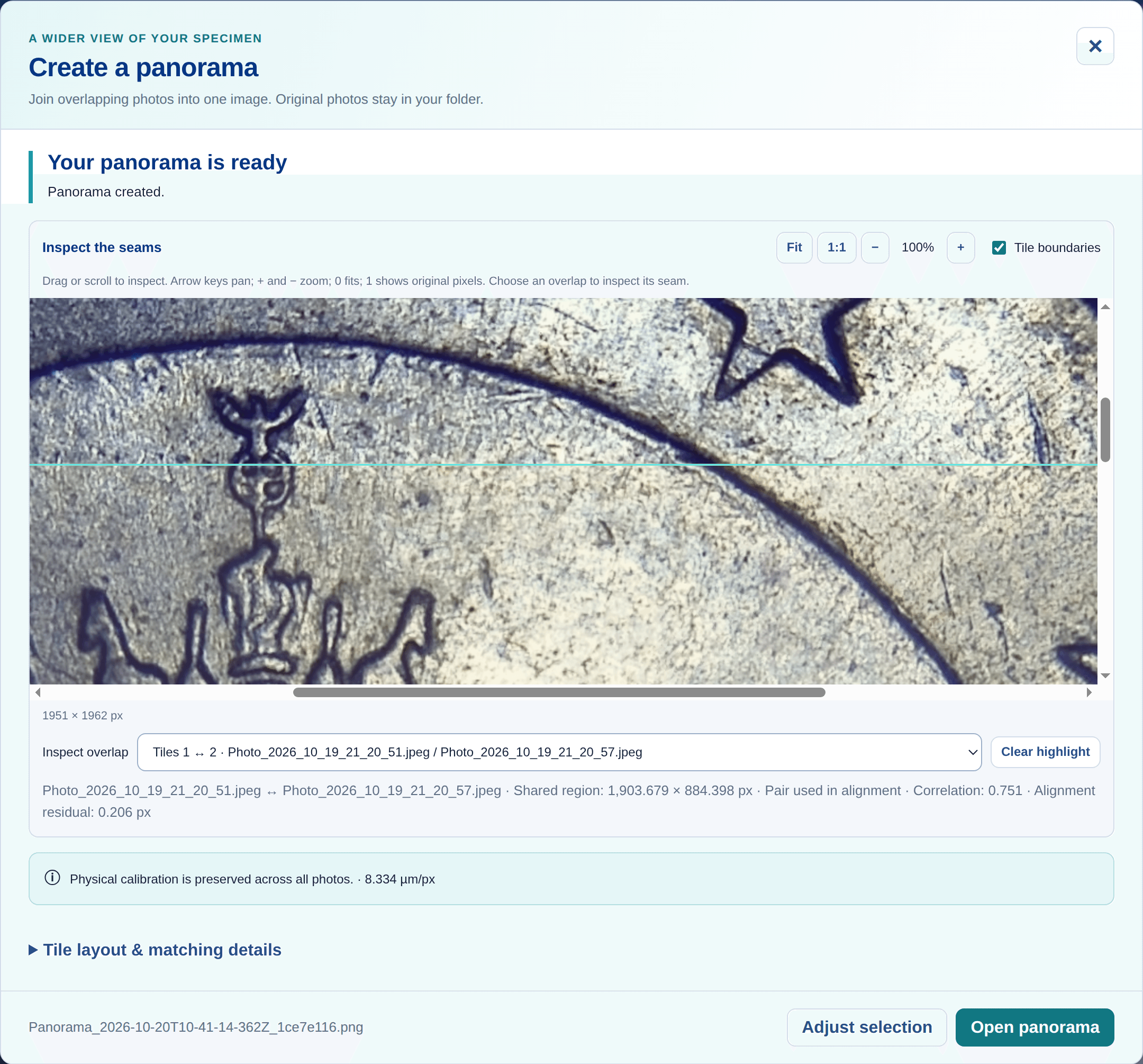
Actual app view at 1:1: inspect the overlap between photos 1 and 2. Its recorded correlation is 0.751 and alignment residual is 0.206 pixels; these values come from the real photo alignment.
Limitations & expectations
- Keep the specimen flat and still, with consistent orientation and enough shared detail. This is a translation-based mosaic, not a 3D reconstruction.
- Each job accepts 2–32 photos and up to 120 megapixels of source or normalized image data. Choose a smaller output resolution if the completed panorama would be too large.
- The finished panorama uses four independently captured photographs from a real microscopy session. The auto-capture demonstration replays images from that session through the app. Matching quality depends on overlap, focus, lighting and specimen geometry.
Frequently asked questions
What is microscopy image stitching?
Microscopy image stitching aligns overlapping views of a specimen and combines them into one larger image, often called a mosaic or panorama. Each source image is a tile, so this workflow is also called tile stitching. In G-Scope Desktop Pro, you can join 2–32 photos to document a wider area of a circuit board, material surface or other approximately flat specimen.
Do I need Pro and a connected microscope?
Panorama stitching is a G-Scope Desktop Pro feature for Windows, macOS and Linux. With a Pro license, you can stitch existing photos without a connected camera. Pro also unlocks while a Smart G-Scope is connected. A camera is needed if you want to capture a new set of photos.
How does automatic panorama capture work?
In G-Scope Desktop Pro 2.6.5, begin a new panorama capture and enable Auto-capture new areas. The app takes the first photo, then waits for clear detail, sufficient overlap and a steady view with enough new area before taking another. The New area target ranges from 10–40%, with a 15% default. Visual guidance tells you when to move, hold still or recover overlap. You move the specimen yourself; End & review opens the photos for selection and stitching.
How should I capture images for stitching?
Use an approximately flat specimen with visible texture. Move it sideways, then hold it still for each photo. Guided auto-capture helps you maintain overlap; when capturing manually, aim for 30–50% overlap. Keep camera orientation, magnification, focus and lighting consistent. The app aligns by translation; rotated views, perspective changes and moving specimens can prevent a reliable match. Auto-capture assists acquisition; final stitching checks the alignment separately.
Can I measure a stitched panorama?
Yes, after checking its calibration and seams. Usable calibration from every photo can be carried into the result, with images resampled to a common physical scale. If any photo lacks usable calibration, or the input scales differ by more than fourfold, the panorama is saved without physical calibration. Calibrate that result before taking measurements.
Which output format and resolution can I choose?
Save PNG or OME-TIFF at full, half or quarter width and height. PNG preserves transparency in areas not covered by a source photo; OME-TIFF writes those areas as black. The app supports up to 100 megapixels for PNG and 40 megapixels for OME-TIFF, with a maximum side length of 32,768 pixels. A metadata sidecar records the source files, tile layout, diagnostics and calibration decision.